
Yeah IPTV for Firestick: A Complete Setup Guide
By Yeah IPTV Updated 3 min read
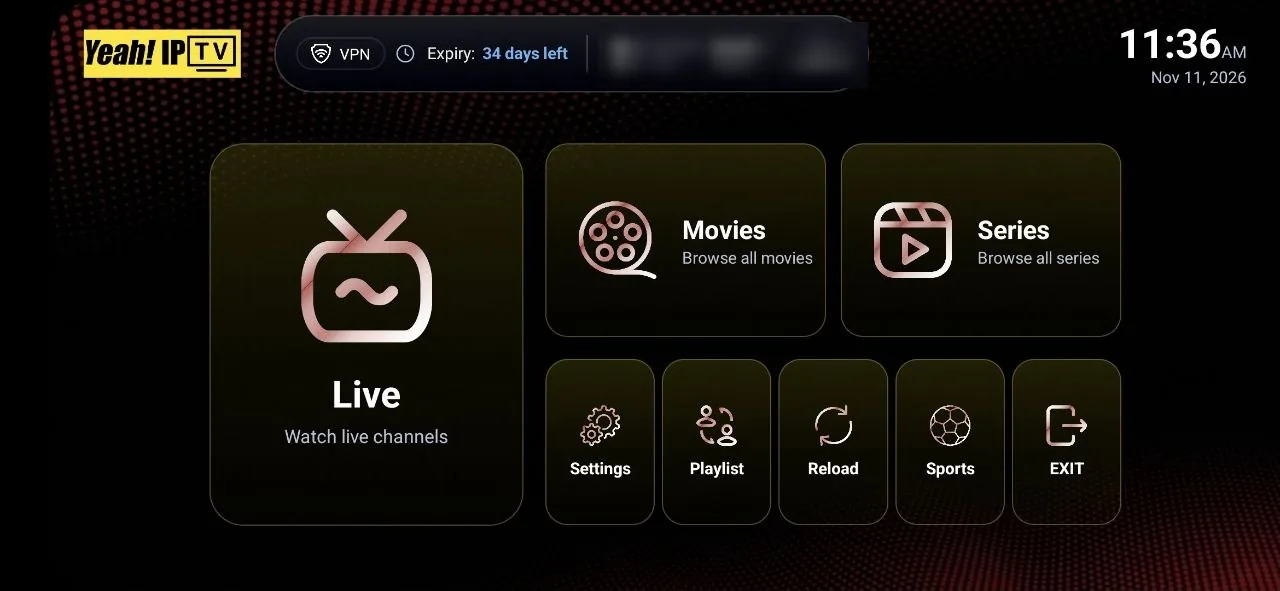
Short answer: install a compatible IPTV player on your Fire TV device, open it, and enter the account details Yeah IPTV sends you. If your chosen player is not in the Amazon Appstore, you may need to install it from the developer's official site.
What You Need Before You Start
- A Fire TV device connected to your TV and signed in to an Amazon account
- Your Yeah IPTV account details, which arrive after you order
- A stable connection. Streaming services commonly suggest about 5 Mbps for HD and 15 to 25 Mbps for 4K
- A 4K-capable Fire TV model and 4K TV, if you want to watch content offered in 4K
Step 1: Choose an IPTV Player
Yeah IPTV is the subscription. The app you watch it in is a separate product from an independent developer. Look for a player that is actively updated, runs on Fire OS and accepts the login format you received.
Some players are free, while others charge for premium features. App availability changes, so check the listing at the time you install.
Step 2: Install the Player
If the player is in the Amazon Appstore
- On the home screen, open Find, then Search.
- Type the name of the player.
- Select the app, then choose Get or Download.
If the player is not in the Appstore
Fire TV can install apps from outside the Appstore, a process known as sideloading. Only do this for an app you trust, using a link from the developer's official website. Apps from unknown sources can put your device and accounts at risk.
- Install the Downloader app from the Appstore.
- Open Settings, then My Fire TV, then Developer Options. If you do not see Developer Options, go to About and press the select button on your device name seven times.
- Allow Downloader to install unknown apps.
- In Downloader, enter the official download address from the developer and install the app.
- Once finished, turn the unknown-apps setting back off for extra safety.
Step 3: Enter Your Yeah IPTV Details
Open the player and add a new account. If your details include a server address, username and password, choose the option often called Xtream Codes. If you have a single long web address, choose the M3U or playlist option. The Fire TV remote is slow for long addresses, so check each character. Many players offer a companion website or phone keyboard to make this easier.
Step 4: Tune Your Firestick for Streaming
| Setting | Why it helps | Where to find it |
|---|---|---|
| Wired connection | Ethernet avoids Wi-Fi interference. Amazon sells a separate adapter. | Plug in, then check Settings, Network |
| 5 GHz Wi-Fi | Usually faster than 2.4 GHz when you are near the router. | Settings, Network |
| Free up storage | Low storage can make apps unstable. | Settings, Applications, Manage Installed Applications |
| Software update | Newer versions may fix playback bugs. | Settings, My Fire TV, About |
Common Firestick Problems
If login fails, recheck the server address and password, as these are the most common errors. If a stream stalls, test your connection speed in a browser on the device, close any background apps and restart the Fire TV by holding Select and Play for several seconds. More checks are in the Yeah IPTV installation guide.
Still stuck? Contact us with your Fire TV model, the player name and the exact error shown.